Hyperfocus:
A Minimalist PDF Reader for Power Users
As a frequent reader of research documents, I found existing PDF readers on macOS created unnecessary friction. Core tasks like focused reading and annotating were hindered by cluttered interfaces and paywalled features.
Apple's Preview
Simple but limited
Hyperfocus
Minimalist yet powerful
Adobe Acrobat
Feature-rich but overwhelming
Existing tools forced a trade-off: simplicity without power, or power with overwhelming complexity. Hyperfocus was designed to fill this strategic gap.
This gap confirmed the opportunity for a third path: a minimalist PDF reader that strips away distractions while adding the keyboard-driven efficiency power users expect from modern software.
Target User
"The Researcher"
Reads 10+ academic papers daily.
Wants to find information and annotate quickly without breaking focus. Values keyboard-driven efficiency.
Overwhelmed by cluttered toolbars. Annoyed by features locked behind subscriptions.
Every design decision was made with this specific user in mind, prioritizing their need for speed and focus above all else.
Key Project Goals
Design a distraction-free reading view that elevates the content itself.
Create an interface that feels native to macOS
Ensure that core actions like executing commands/tools and navigating are intuitive and accessible
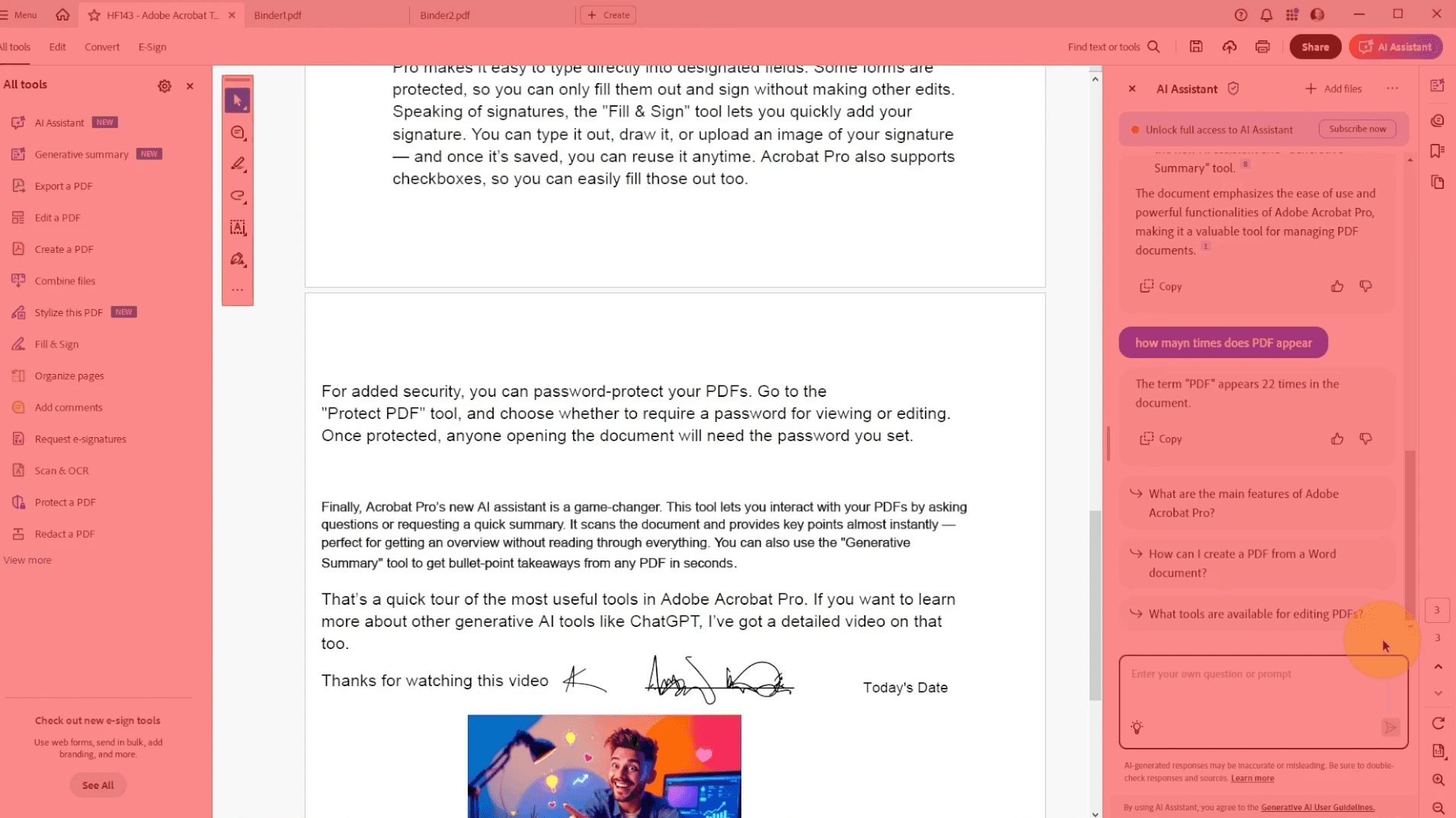
Existing PDF readers often overwhelm the user with crowded toolbars and distracting UI elements, burying the core reading experience. My goal was to eliminate this friction. (Image: Howfinity / YouTube)
My initial high-fidelity prototypes stuck closely to native macOS patterns. While familiar, they felt generic and didn't solve the core problem: distraction. The standard window toolbar pulled attention away from the document itself.
This sparked a pivotal decision: to abandon the standard window toolbar. I opted for a cleaner, sidebar-based layout that removed the distracting top chrome entirely. This choice put the document front-and-center, creating the 'zen' reading experience I was aiming for.
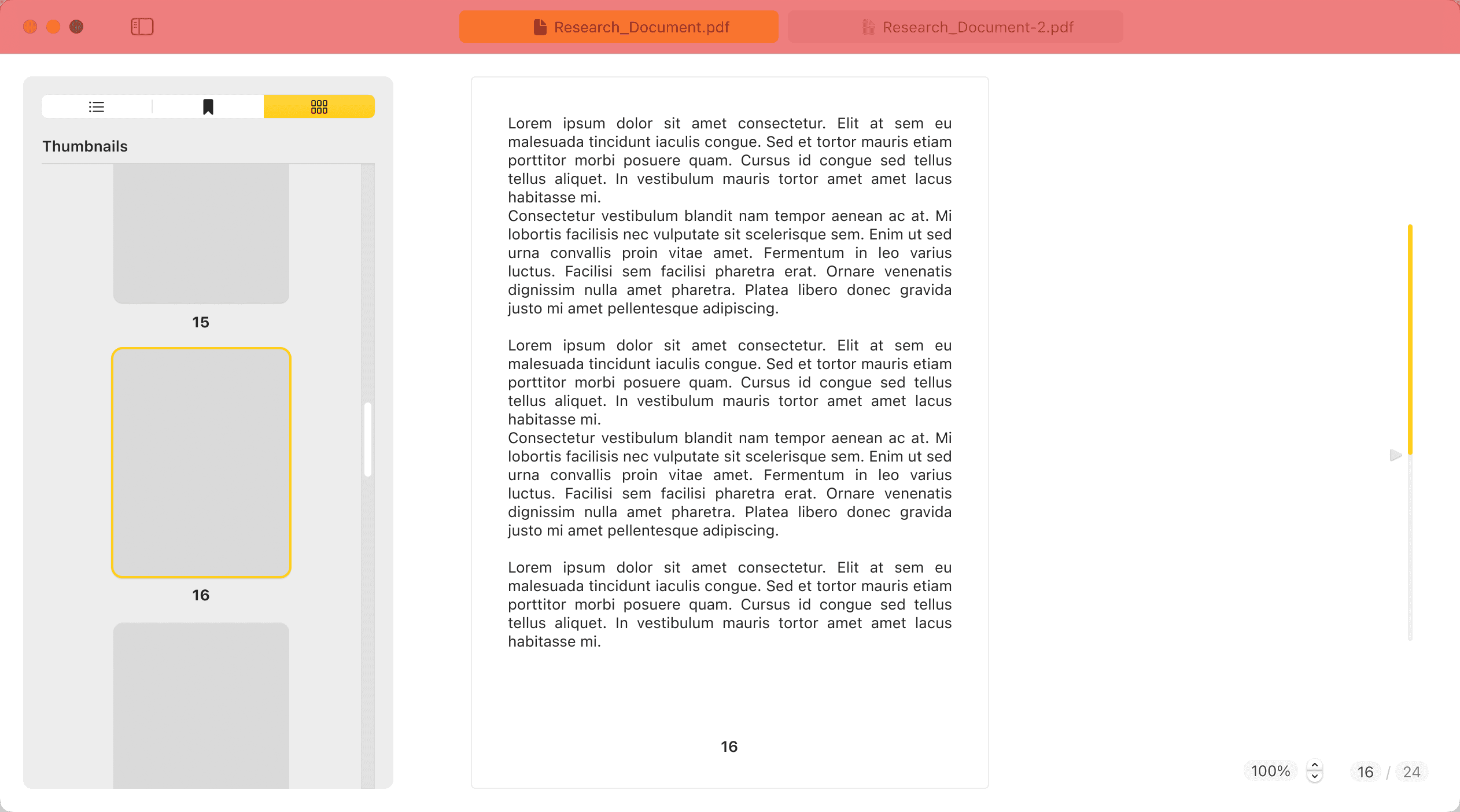
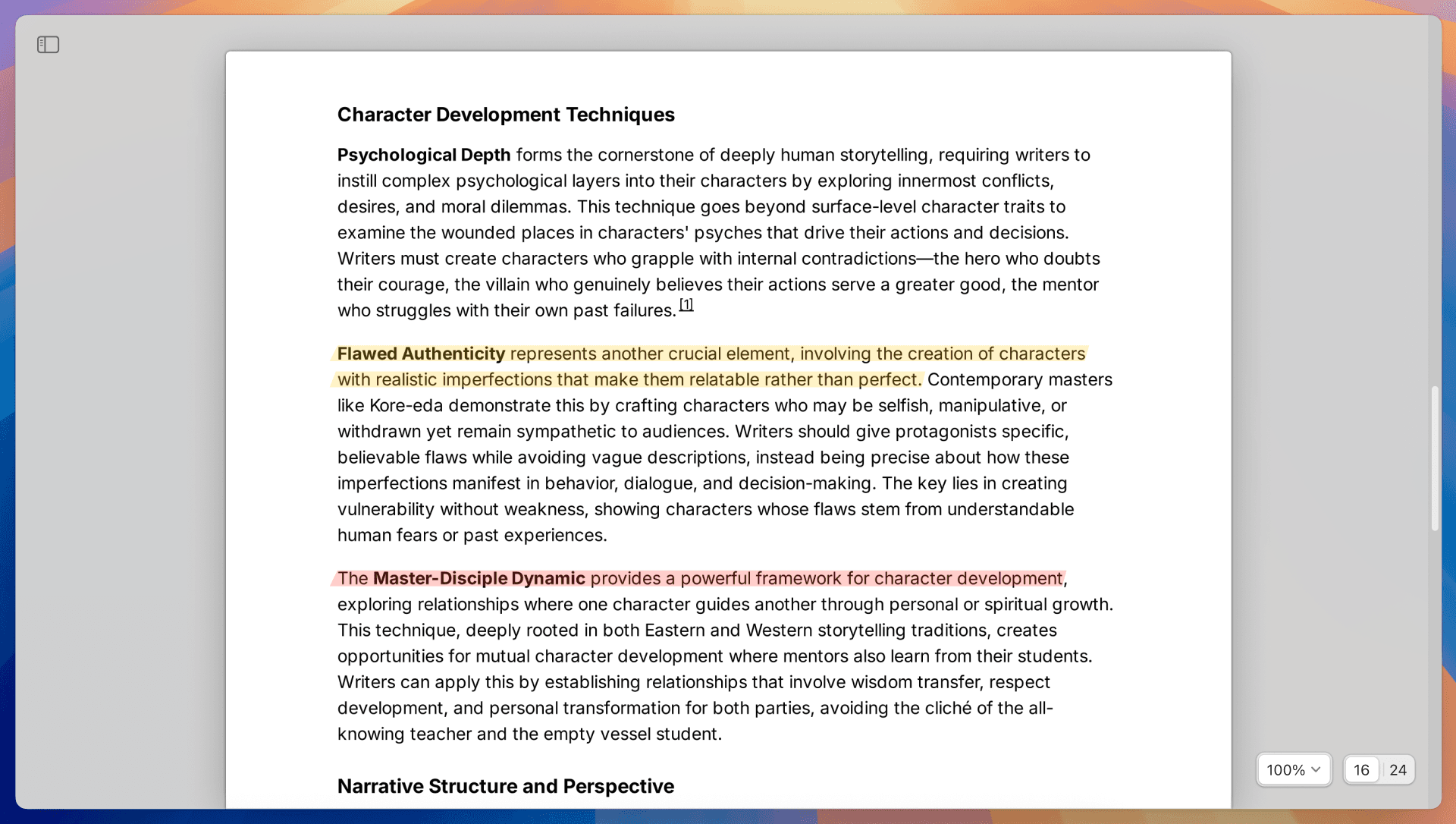
The redesigned architecture (bottom) eliminates the distracting top toolbar, shifting the focus from the UI chrome to the user's content.
However, this created a critical challenge. By removing the toolbar, I also had removed the primary access point for all features. How could I provide powerful functionality without reintroducing clutter?
The solution was the Command Center—this project's core innovation. Inspired by macOS’s Spotlight and Arc Browser’s command bar, it provides access to every tool—from searching files to executing functions—through a simple keyboard shortcut. The UI stays incredibly clean while functionality remains instantly accessible.
The design evolved from a basic search bar to include a contextual header and dynamic footer for tooltips. These additions proved crucial for guiding users through navigation and functionality without extensive tutorials.
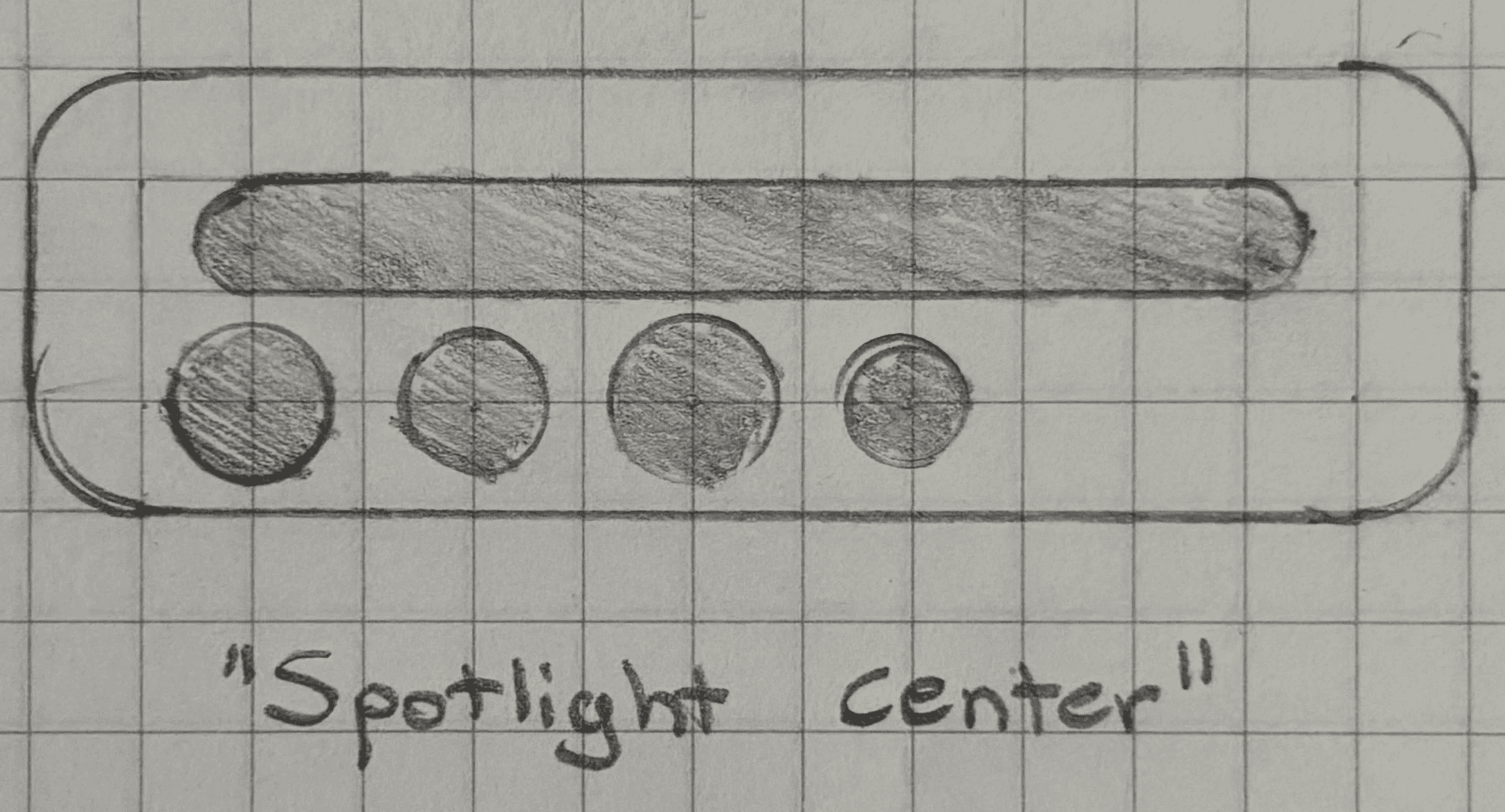
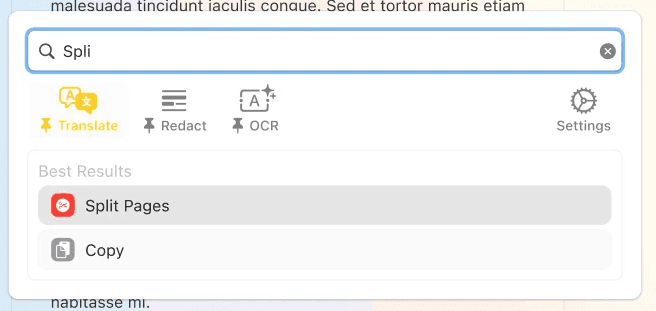
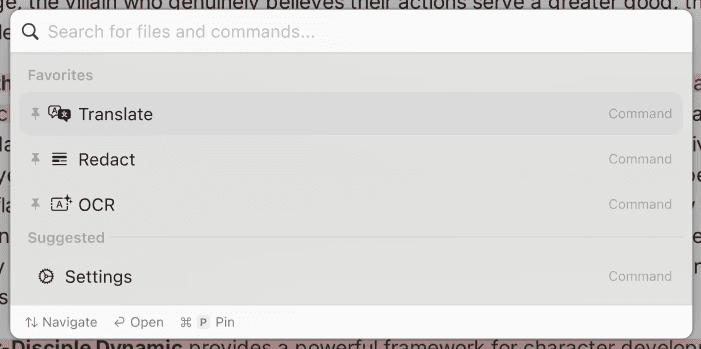
The Command Center evolved from a simple search bar into a more robust tool. The final design includes a persistent header and a contextual footer to improve discoverability and guide the user without adding permanent clutter to the main UI.
Even in a minimalist design, small details can have a big impact. Three key challenges arose that required careful iteration and reinforced critical design lessons.
The original "Mustard Yellow" accent color looked great in the style guide but proved distracting in practice. It created contrast issues and pulled focus from reading. After several failed attempts to moderate it, the most effective solution was to remove it entirely, proving that a strong UI must prioritize function over subjective style.
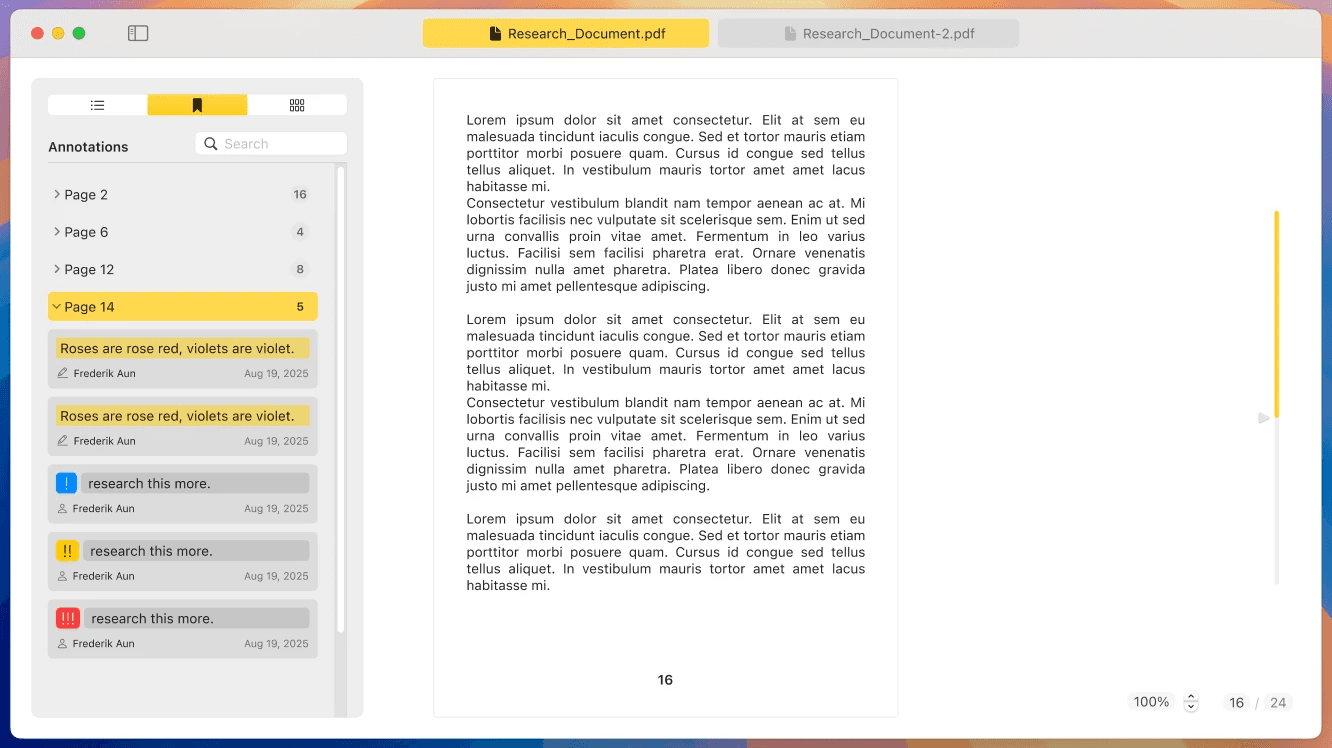
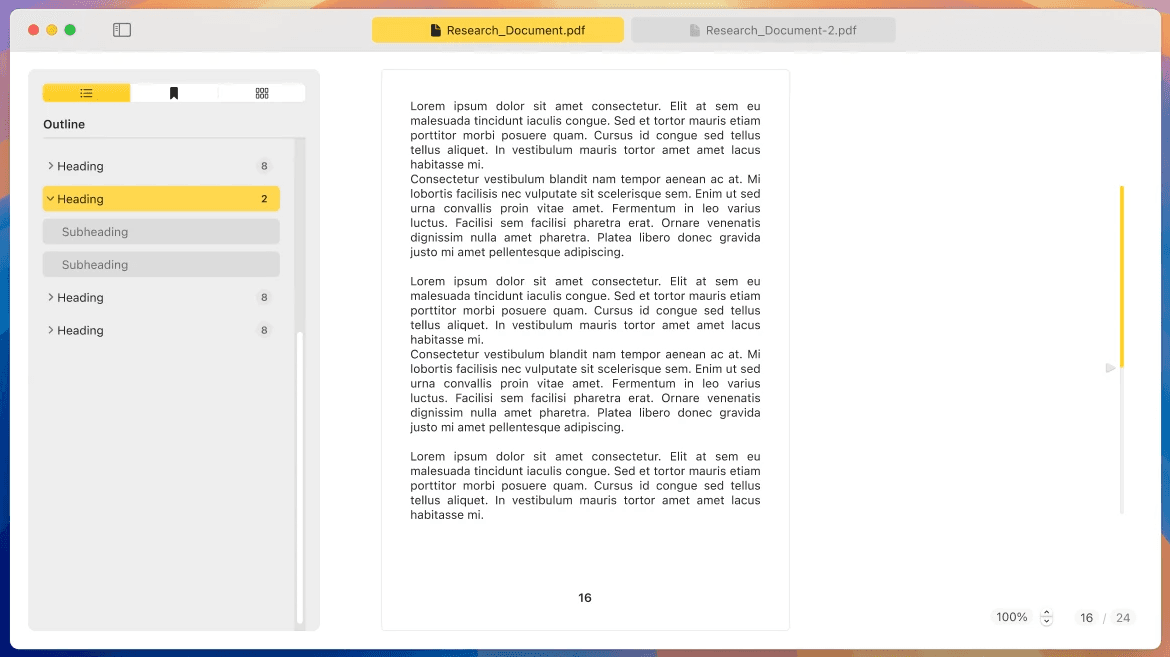
The initial accent color—"Mustard Yellow"—was too vibrant and distracting. This taught me to be ruthless in eliminating any element that compromises the primary user goal—in this case, focused reading.
Using Depth to Solve Visibility
The 'Thumbnails' screen toolbar was so subtle it became a discoverability problem. Instead of adding more visual clutter with borders or backgrounds, a simple drop shadow provided just enough presence while maintaining minimalism.




A subtle drop shadow was all that was needed to solve the toolbar's visibility issue (bottom), demonstrating that small, thoughtful details are often more effective than large-scale redesigns.
Right-Sizing the Design
I ensured every component matched the product's minimalist scope. My initial wireframe for the settings was over-engineered, so I pivoted to a simpler, tabbed layout that respects the user's time. This disciplined choice kept the interface lean and purposeful, not bloated.
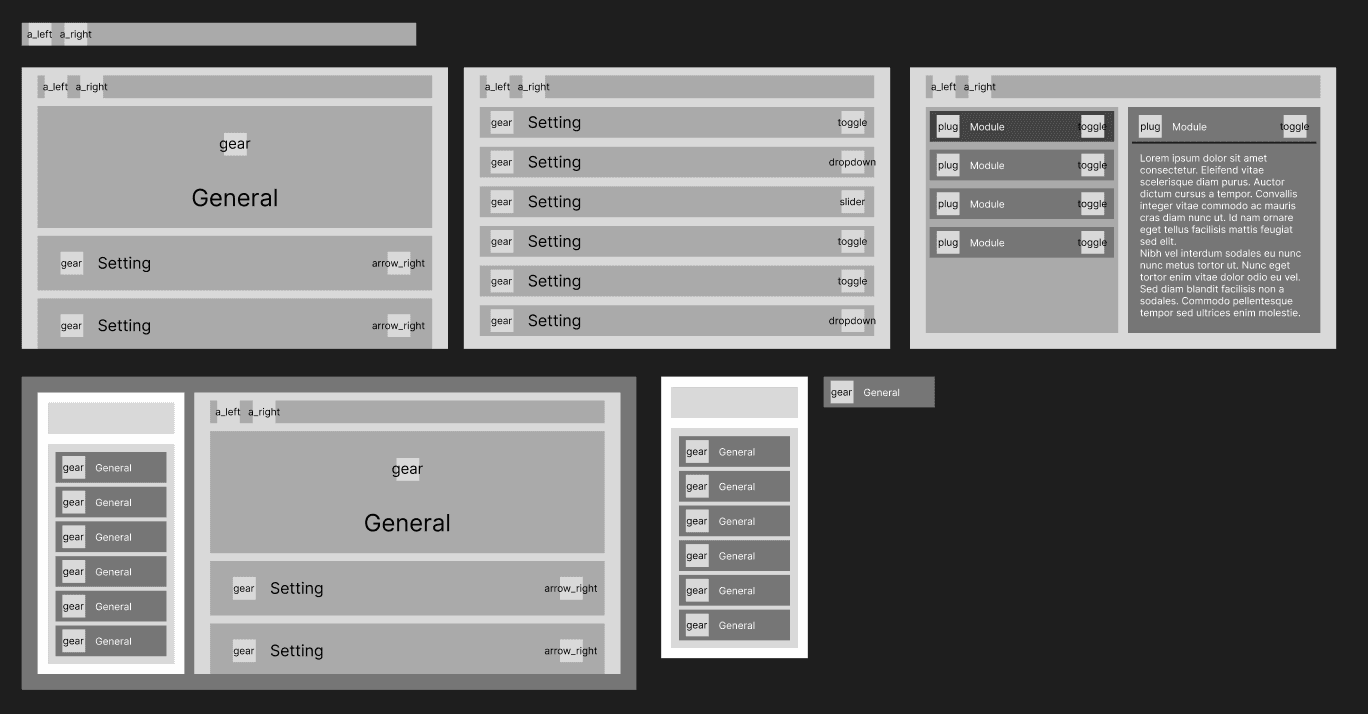
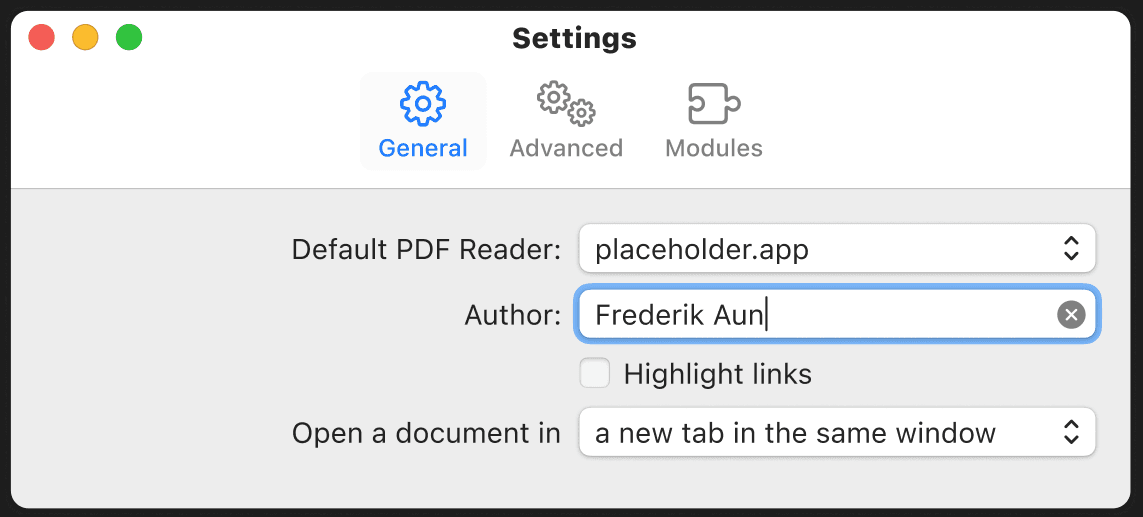
The initial concept (top) was over-engineered. The final design (bottom) was 'right-sized' to match the app's minimalist scope, respecting the user's time by providing a lean, purposeful interface.
This project culminated in a high-fidelity prototype for a focused, elegant PDF reader. I built the entire design using Apple's official macOS Figma UI Kit, then customized it to balance native aesthetics with a keyboard-driven workflow that empowers users to work faster. Every decision reduces cognitive load so readers can concentrate on their documents.
The centerpiece of the application is the “Reading” screen. I eliminated the traditional top toolbar entirely and applied a subtle drop shadow to elevate the document as the unmistakable focal point. Secondary UI elements—page navigation and zoom controls—are intended to appear only when needed, then fade away automatically. This design ensures readers maintain their flow state without visual distractions competing for attention.
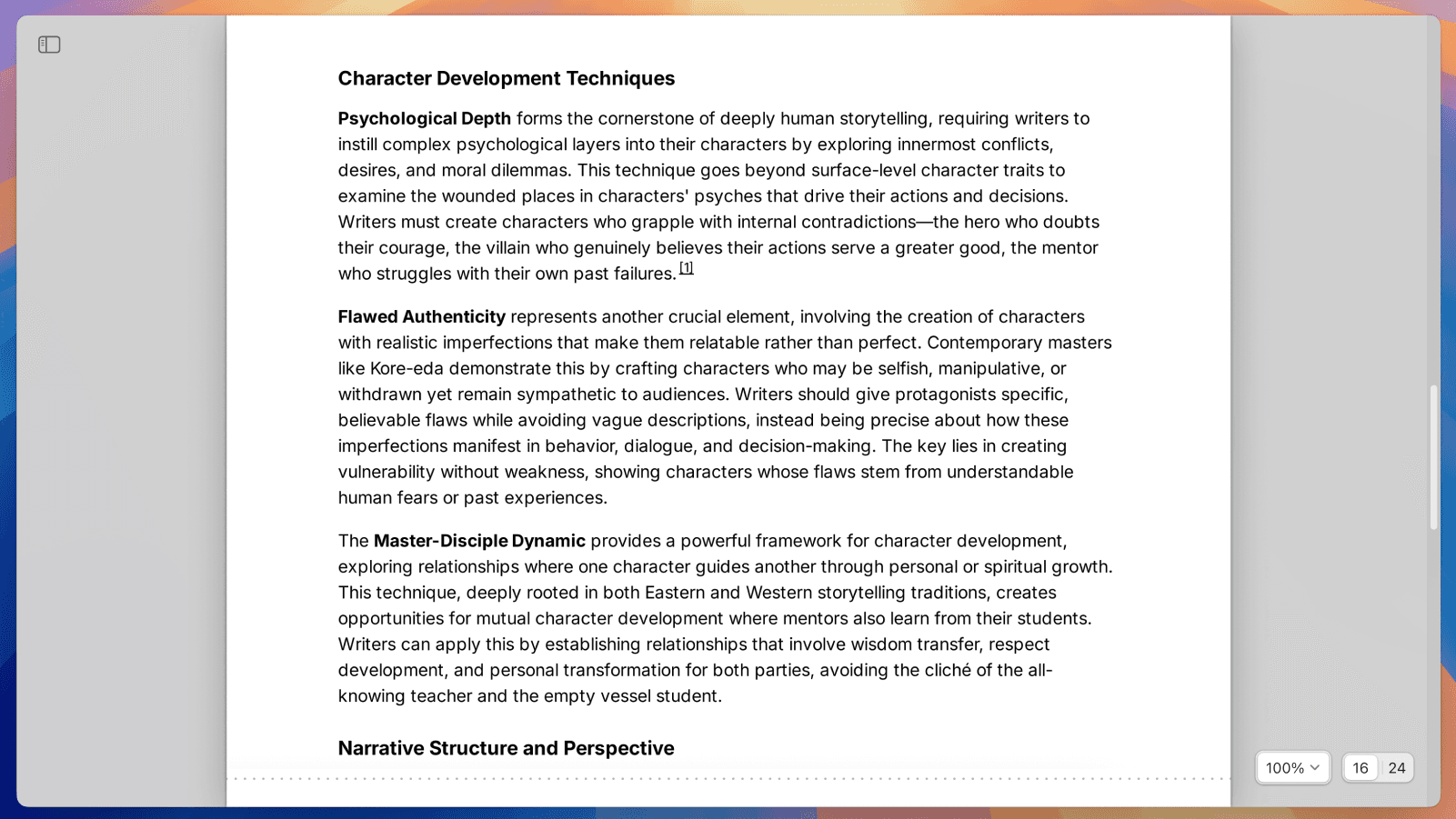
The final Reading screen removes all non-essential UI, creating a 'zen' environment that prioritizes the content above all else.
To preserve this clean interface while providing powerful functionality, I designed the Command Center. Activated with Cmd+T, it gives users instant access to search, commands, and navigation without leaving their document. This keeps the main UI clean while ensuring that advanced functionality is always just a keystroke away.
Workflow Comparison
5 steps
Mouse
1. Move
2. Find
3. Click
4. Browse
5. Select
3 steps
Keyboard
1. ⌘T
2. Type
3. ↵ Enter
The Command Center transforms multi-click mouse operations into a rapid, single-flow keyboard command, drastically reducing the time and cognitive load required to access tools.
Advanced users work through muscle memory while new users enjoy an uncluttered interface that doesn't overwhelm—everyone gets exactly what they need, when they need it.
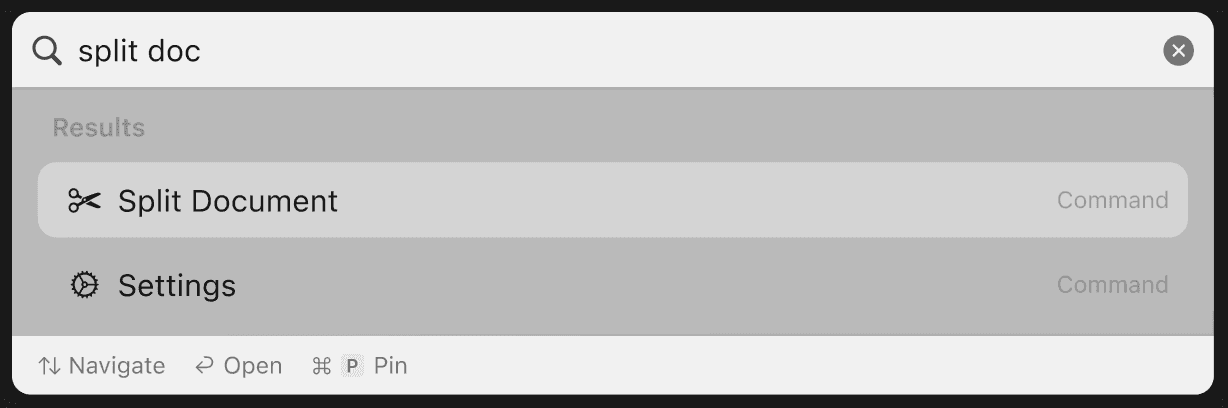
The Command Center makes powerful features instantly accessible without adding any permanent UI, directly supporting the goal of a minimalist interface.
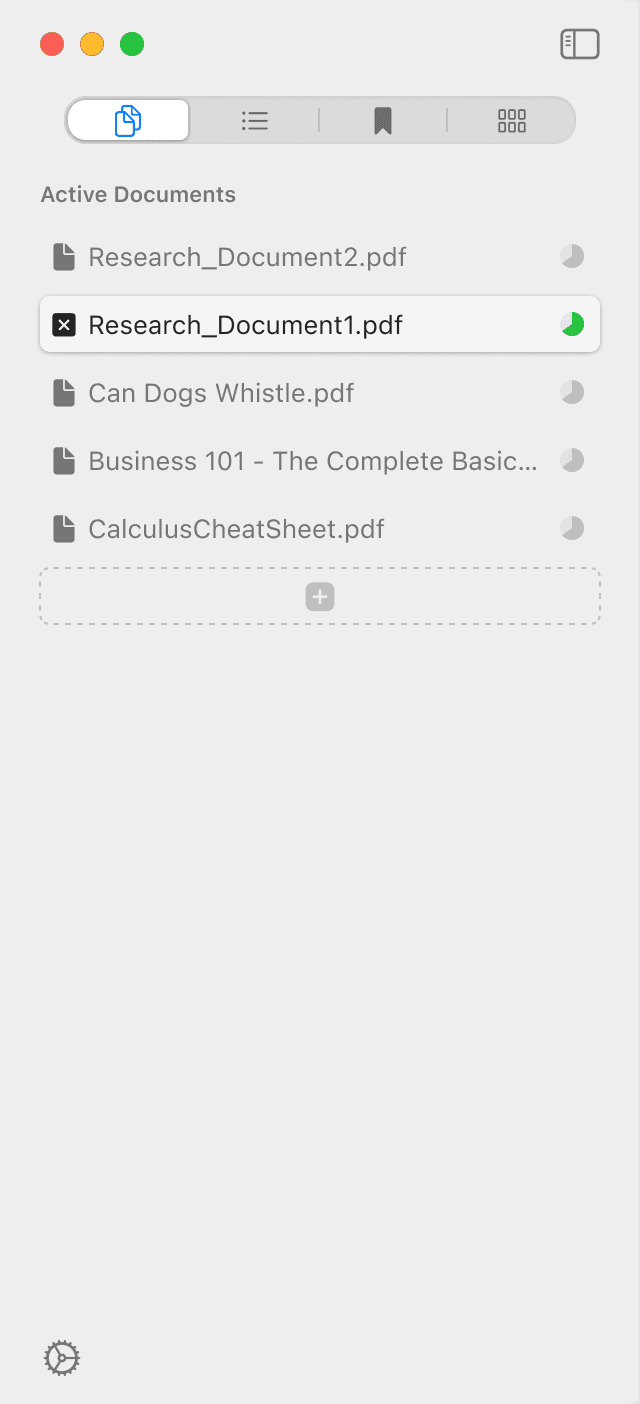
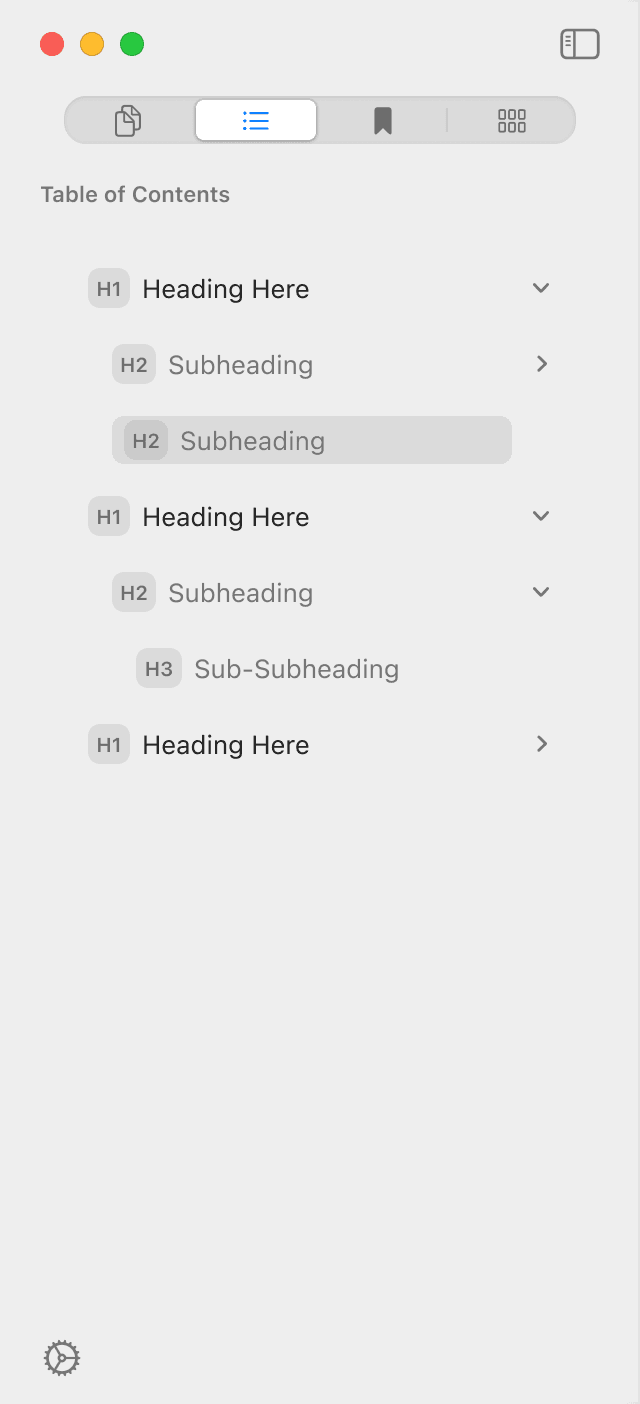
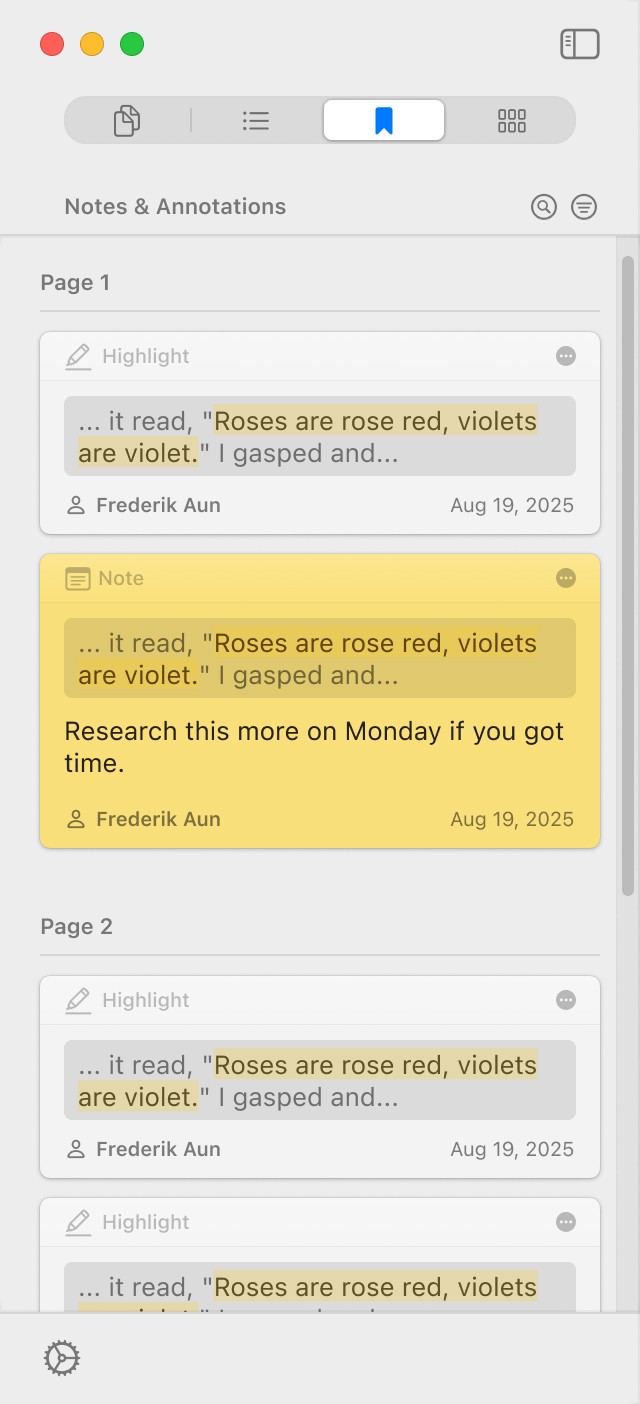
Finally, I consolidated all organizational tools—file browser, table of contents, and annotations—into a single collapsible sidebar. Users access these tools instantly when needed, then hide them completely to maximize reading space. By keeping everything in one predictable location, readers spend less time hunting for features and more time engaging with their content.
Defining the Impact
The central promise of this project was to design a minimalist PDF reader that provides a frictionless workflow for researchers.
The final designs successfully deliver on this promise through three core principles:
The design creates a 'zen' reading environment by deliberately removing distracting elements that plague other PDF readers. By consolidating features into the Command Center and collapsible sidebar, I established a clear hierarchy that separates core reading from secondary actions.
Users can now engage deeply with their content without visual interruptions breaking their concentration.
I built the entire interface on Apple's Human Interface Guidelines and official Figma UI Kit to ensure a deeply native experience. This foundation drastically reduces the learning curve; users feel at home immediately.
While this is a conceptual project without user testing data, the design is intended to create a tangible impact on a researcher's workflow. The ideal outcome is a user who feels empowered to work with keyboard-driven speed, confident that powerful tools are instantly available but never in the way. They would spend less time fighting the interface and more time thinking, reading, and learning.
The streamlined workflow transforms PDF reading from a frustrating necessity into a seamless extension of their research process.
I successfully proved that a powerful PDF reader doesn't need to be complex. The final design delivers a focused, efficient workflow that respects users' time and attention—giving them exactly what they need to do their best work.
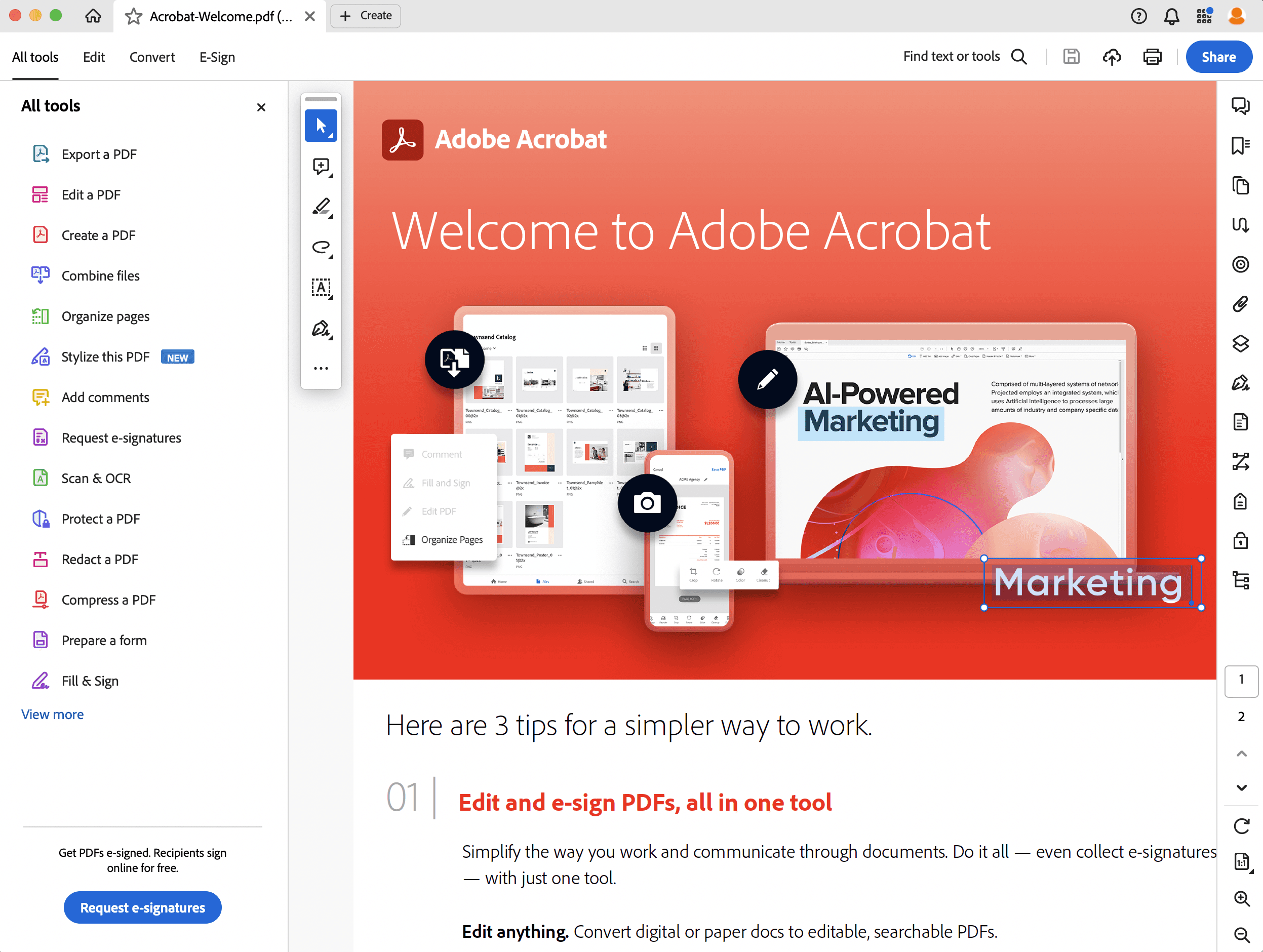
The final Reading screen removes all non-essential UI, creating a 'zen' environment that prioritizes the content above all else. (1st Image: Adobe)
The Criticality of Upfront Research
This project's most valuable lesson came from a late discovery: most competitors already had a focus-oriented “Reading Mode." This taught me that deep competitive analysis must happen first, as it fundamentally shapes the problem to be solved and sharpens the project's true value proposition.
The Power of a Specific Problem
My biggest takeaway: the importance of a highly specific problem statement. Shifting from the broad goal of a "distraction-free PDF reader" to the more nuanced challenge of "How can a minimalist reader also be incredibly efficient for power users?" led directly to the Command Center—the project's core innovation.
Balancing Convention with Character
While grounding the design in Apple's UI Kit was crucial for familiarity, I learned that a memorable experience comes from knowing when to thoughtfully push beyond native conventions to better serve a specific user need.
The Skill of Rigorous Self-Critique
The most valuable skill I honed was objective self-critique. I learned to recognize when designs weren't truly serving users and to pivot decisively, ensuring the final solution was the most effective one, not just the first one.
My process for future projects will be fundamentally different; each beginning now with deeper market and user research to validate true needs and uncover specific user pain points. I will integrate principles from established design workflows like the Double Diamond model to bring more rigor and evidence to my existing process.
The top priority for a Version 2.0 would be to adopt Apple's “Liquid Glass” design language. This would ensure the app continues to feel integrated with the latest versions of macOS, preserving its native feel while maintaining the core, focus-first philosophy that makes it valuable to researchers.